Digital business card for Apple Wallet and Google Wallet
With MyTaag, your digital business card lives as a pass in Apple Wallet and Google Wallet – with a QR code the other person simply scans. When something on your business card or its design changes, MyTaag updates the Wallet pass automatically, with no new download.
- Made in Germany
- Servers in Germany
- Compliant with EU regulations
- As seen on the German version of Shark Tank
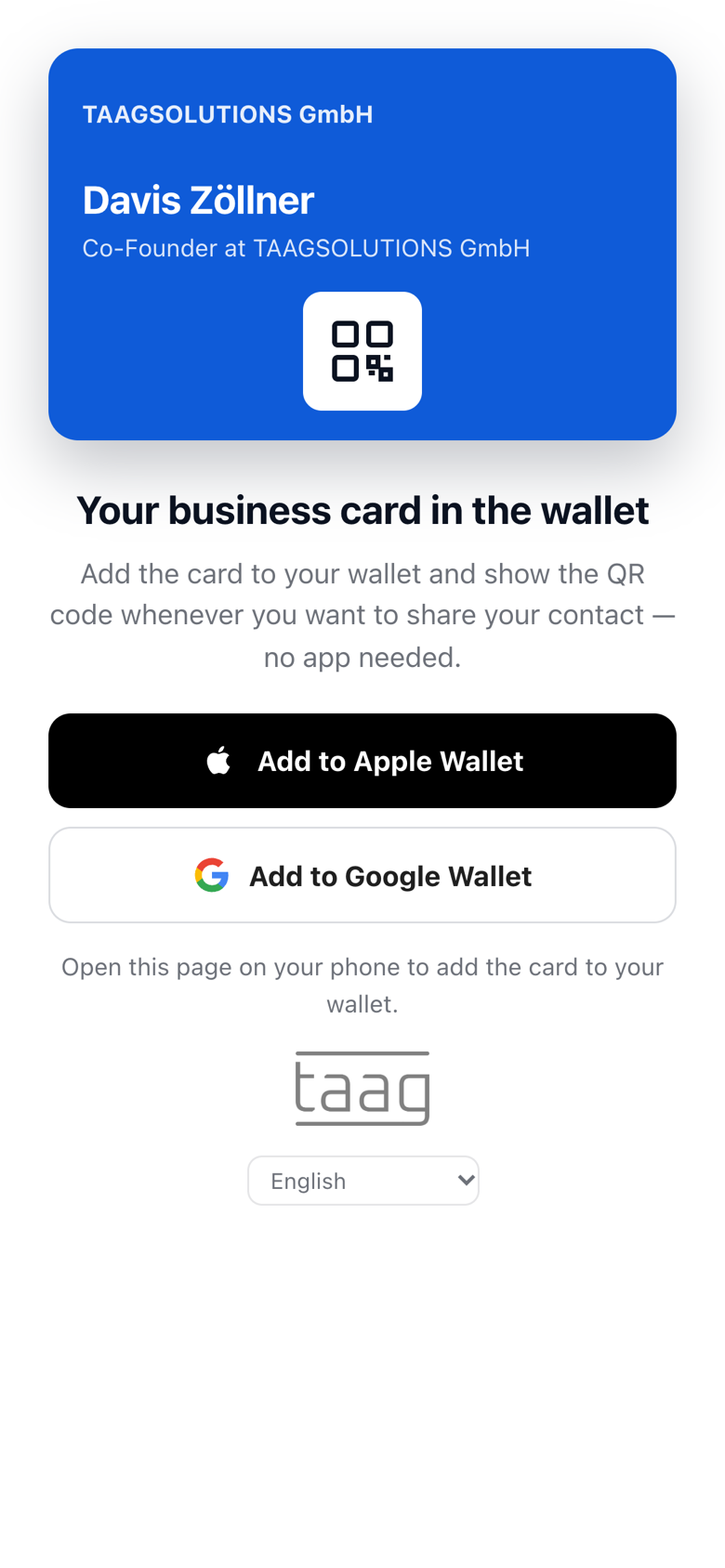
What is a Wallet business card?
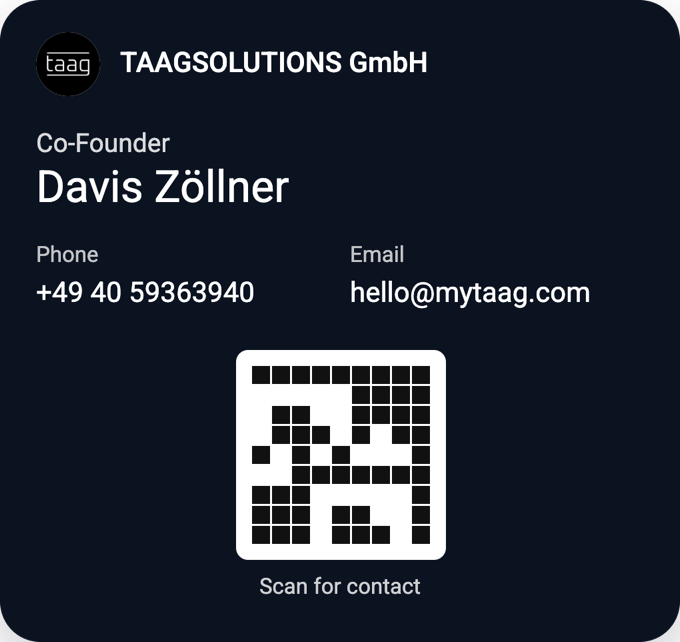
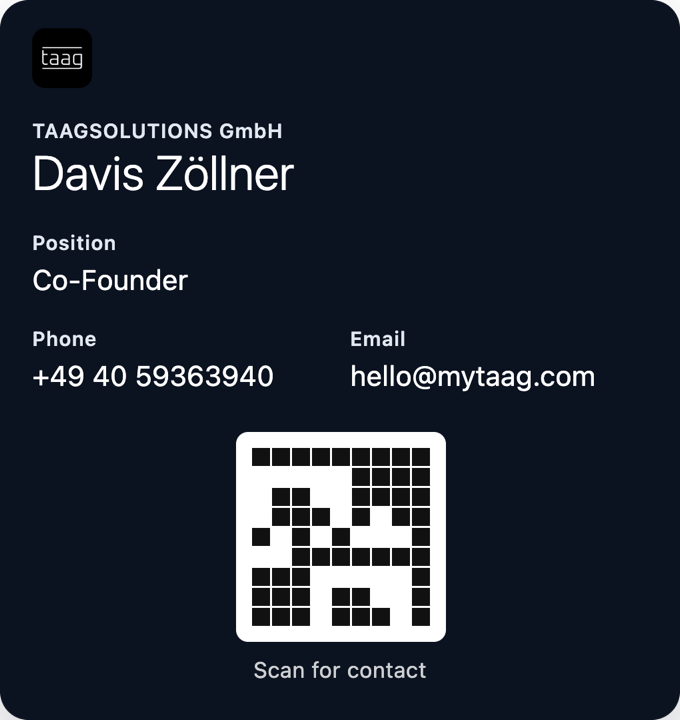
You know Apple Wallet and Google Wallet from boarding passes, cinema tickets and loyalty cards. MyTaag uses the same technology for your business card: the Wallet pass shows your company’s logo and name, your name and photo, job title, phone, email and a QR code. When someone scans the code, your digital business card opens in their browser – no app, with “Save contact” for their address book.
The advantage: you always have your phone with you, and you can reach your Wallet in seconds without even opening the MyTaag app. No forgotten paper cards, no searching in the browser, no link you have to send first.
The problem with many Wallet solutions: once a pass is added, it stays exactly as it is. New job title, new logo, new color – and every employee would have to download their Wallet pass again. That’s exactly what MyTaag solves.
The Wallet pass doesn’t replace the other ways of sharing, it complements them. In a client meeting you tap with your NFC business card, in an email you send your link, and when you don’t have the NFC card with you or the other person has NFC turned off, you show the QR code from your Wallet. Every route leads to the same digital business card – with the same content, the same design and the same lead form.
Automatic updates
Automatic updates for every Wallet pass
When something changes on your business card or in your company’s design, MyTaag updates the Wallet pass on the phone automatically.
For a single profile, that’s convenient. For a company, it’s essential: a new logo after a rebrand, a new color for one location or a changed job title reaches everyone without anybody lifting a finger. No outdated passes, no company-wide memo saying “Please re-download your Wallet pass”.
- Apple Wallet
- Google Wallet
- Automatic updates
- Custom Wallet design
- Sent by email
When automatic updates make the difference
Everyday changes that would mean a new download every time with static Wallet passes.
New job title or number
After a promotion or a new extension, you update the business card. Shortly afterwards, the Wallet pass shows the new details.
Rebranding
New logo, new company color: you change the design once, and every employee’s Wallet pass follows.
Scheduled content
Fields that only apply from a certain date – such as the new phone number from January 1 – become active automatically, on the business card and in the Wallet.
Apple Wallet and Google Wallet
One business card, two wallets – iPhone and Android are supported equally.
Apple Wallet
On iPhone, you add the business card from the “Add to Wallet” page. It then sits next to your other cards and tickets. Double-click the side button to open the Wallet and show the QR code.
Google Wallet
On Android phones, the business card lands in Google Wallet with one tap. Here too you show the QR code, and the other person scans it with their camera to open your digital business card.
Share via QR code
The QR code on the Wallet pass leads to your current profile. More on the QR code business card page. For a simple vCard code without a profile, use the free vCard QR code generator.
Rolling Wallet passes out to a whole company? See how invitations, design and permissions work on the page about digital business cards for teams.
Wallet design
Wallet passes in your corporate design
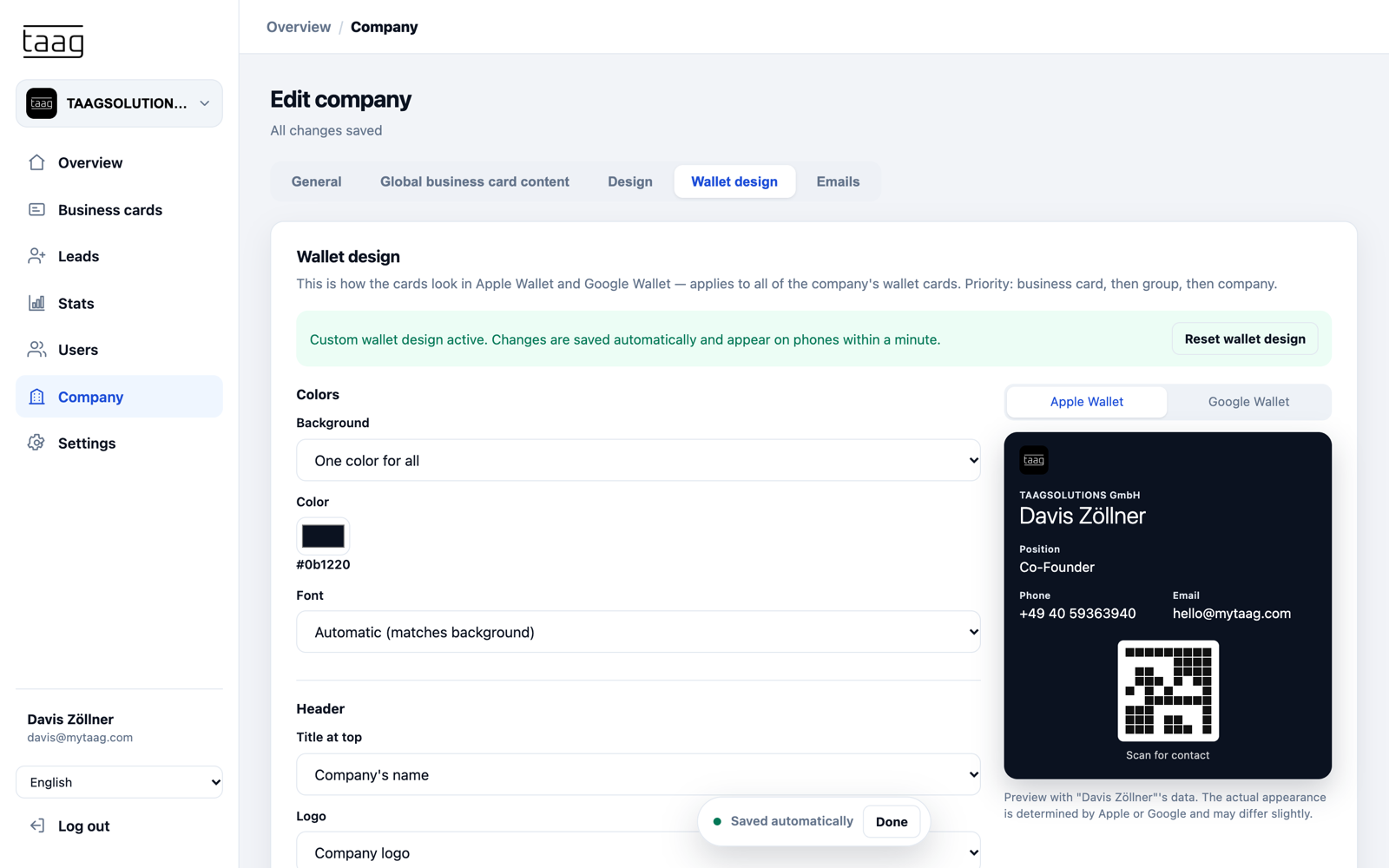
The Wallet pass is often the first thing people see of you. That’s why it gets its own design in MyTaag: you set the background color, font, header and logo for the company, and groups such as locations or sub-brands – and individual business cards – can deliberately deviate.
- Clear order of precedenceCard before group before company before profile design. If nothing specific is set, the Wallet pass takes on the design of your business card.
- Changes reach everyoneWhen you adjust the Wallet design, every affected Wallet pass updates automatically.
Team rollout
Roll out Wallet passes across your team
To get every employee using their Wallet pass, you send it from MyTaag by email. One tap on the link and the pass is in Apple Wallet or Google Wallet. You adapt the email text to your own voice with custom email templates.
New employees get their Wallet pass on day one, without waiting for a print shop. And because Wallet passes update automatically, there’s nothing more to send after the rollout – not even when design or details change.
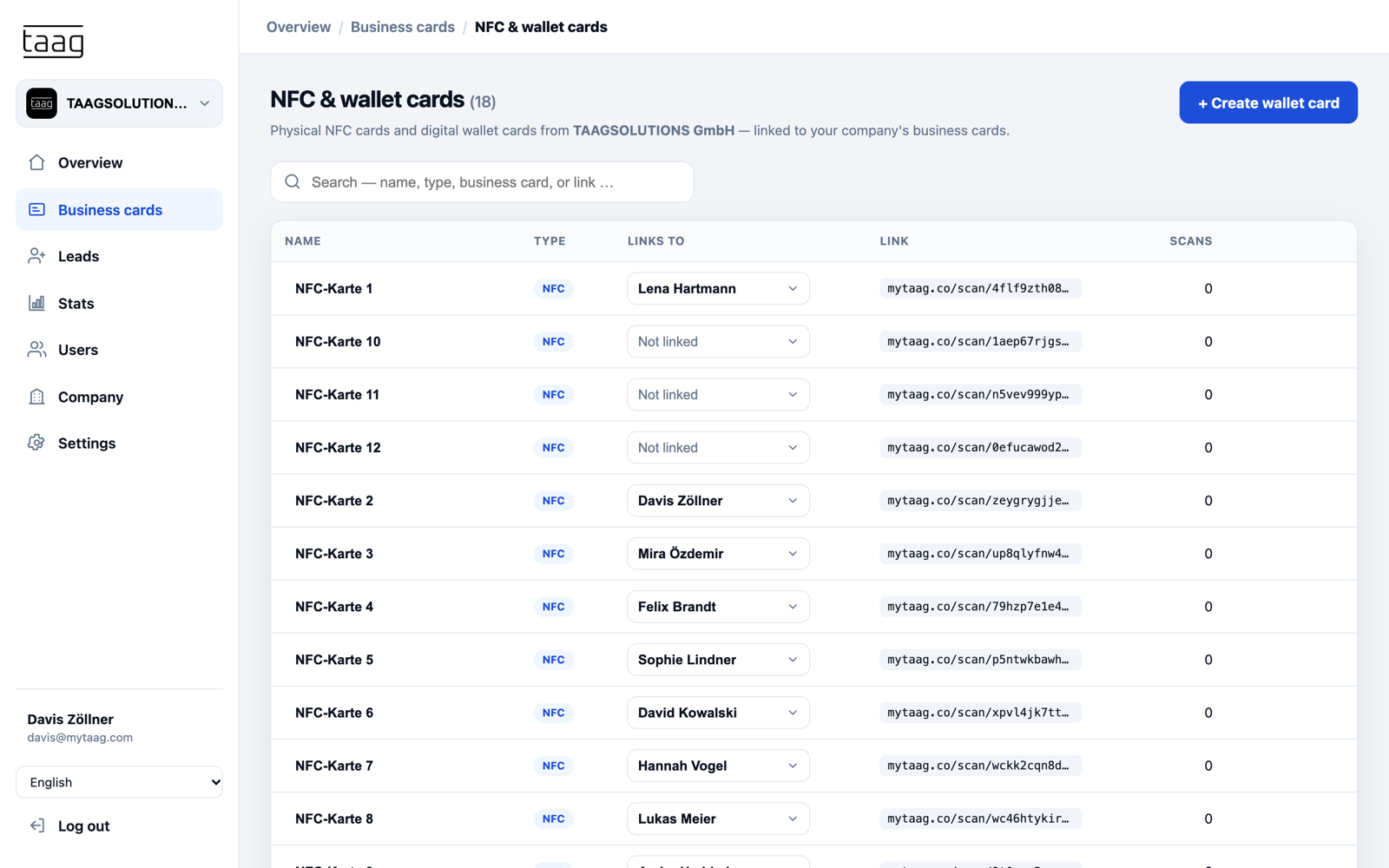
- NFC and Wallet cards in one listSee all of your company’s Wallet passes together with its NFC cards – linked to your team’s business cards.
- Part of team managementInvitations, design, permissions and offboarding are all handled centrally. More under digital business cards for teams.
Paper business card or Wallet pass?
| Paper business card | Wallet pass with MyTaag | |
|---|---|---|
| Always with you | Only if you remember | On your smartphone |
| Up to date | Reprint for every change | Automatic updates |
| Sharing | Hand over the card, details get typed in | Show the QR code, save the contact |
| Contact in return | Only if the other person has a card | Lead form on the business card |
| Corporate design | Per print order | Central for company, groups and cards |
| Analytics | None | Views, link clicks, saved contacts |
More than a pass in your Wallet
Behind every Wallet pass is the full MyTaag platform. Especially popular with teams in hospitality and insurance.
Capture leads
The other person leaves their own contact details on your business card – with consent.
Learn more – Capture leadsNFC business card
For face-to-face conversations: tap the card and the profile opens.
Learn more – NFC business card31 languages
The profile behind the QR code automatically appears in the device language of the person scanning it.
Frequently asked questions about the Wallet business card
Apple Wallet, Google Wallet and automatic updates – answered briefly.
How do I add my business card to Apple Wallet?
From the “Add to Wallet” page of your MyTaag business card, or via the link in the email you receive from MyTaag. One tap on “Add to Apple Wallet” is all it takes.
Does it work with Google Wallet too?
Yes. On Android phones, you add the business card to Google Wallet just as easily. Both versions show a QR code that leads to your digital business card.
Does the Wallet pass update automatically?
Yes. When something changes on your business card or in its design, MyTaag updates the Wallet pass on the phone automatically. You don’t need to download it again.
How do I share my business card from the Wallet?
Open the Wallet – on iPhone, for example, by double-clicking the side button – and show the QR code. The other person scans it with their camera and saves your contact, no app required.
Can the Wallet pass carry our corporate design?
Yes. You set a custom Wallet design for the company, for groups and for individual business cards. The order of precedence is card before group before company before profile design.
Do I need an app for the Wallet pass?
No. Apple Wallet and Google Wallet are already on the phones. The other person doesn’t need an app either: the QR code opens your digital business card in the browser.
Do I need an NFC card as well?
No. The Wallet pass works on its own: show the QR code, done. Many teams combine it with an NFC business card for face-to-face conversations. Both lead to the same digital business card, and you manage both centrally in MyTaag.
How do all employees get their Wallet pass?
You email it to your team from MyTaag. You customize the text of that email with your own email templates.
Your business card in the Wallet – always up to date
In the demo we show you Wallet design, automatic updates and delivery to your team.