Have questions or issues?
Help & Support
Guides for the web app (app.mytaag.com) and the MyTaag app for iOS and Android – or book a free support call.
Topics at a glance
Pick a topic. Where the web app and the mobile app differ, you'll find both ways.
Overview: web & app
What works in the browser and what in the app, downloading the app, languages. Go to the overview
Account, login & security
Sign up, Apple, Google and Microsoft sign-in, password, 2FA, app lock, notifications, deleting your account. Go to account and login
The MyTaag app
Profile home screen, round share button, Leads tab, menu and switching companies. Go to the app
Business cards
Create, fields, banner with video, design, inheritance, locked fields, groups, import, licenses. Go to business cards
Sharing your card
QR code online and offline, QR designer, link, vCard, email signature, meeting background. Go to sharing
Scanning paper business cards
Snap a business card, check it and save it as a lead – in the app. Go to scanning
NFC cards (Taags) & QR
Activate a card, change its destination, old taag.co cards and what to do if it doesn't respond. Go to NFC and QR
Apple & Google Wallet
Add your card to Wallet, automatic updates, send passes to your team, wallet design. Go to Wallet
Appointment booking
Connect a Google or Outlook calendar, set your times, cancel appointments. Go to appointment booking
Leads & CRM
Contacts, labels, group rules, pipeline, tasks, lead form, widget, import and export. Go to leads and CRM
Stats & overview
Views, clicks, periods, campaigns and who sees which numbers. Go to stats
Team & company
Invite users, permissions, offboarding, multiple companies, company page, email templates. Go to team and company
Billing & plans
Free plan, MyTaag Teams, licenses, invoices and cancellation. Go to billing
Privacy & support
How your data is protected and how to reach us. Go to privacy and support
Frequently asked questions
Specific problems and quick fixes. Go to the FAQ
Overview: web app and mobile app
MyTaag is available in the browser at app.mytaag.com and as the “MyTaag” app for iPhone/iPad and Android. Both use the same account and the same data: what you change in the app shows up on the web right away and vice versa. The people you meet need neither an app nor an account – your business card opens in the browser at mytaag.co/….
What can I do on the web and what in the app?
Almost every feature is available in both places. The differences:
| Feature | Web app | App (iOS/Android) |
|---|---|---|
| Create, edit and share business cards, design the QR code | Yes | Yes |
| Scan paper business cards | No | Yes (“Scan lead”) |
| Show the QR code offline (contact without internet) | No | Yes |
| Add to Apple/Google Wallet in one tap | via the wallet page | Yes, right on the profile home screen |
| Call a lead, message via WhatsApp, save to contacts | No (email link yes) | Yes |
| Push notifications, app lock with Face ID/fingerprint | No | Yes |
| Pipeline with drag & drop | Yes | Deals via “Move to …” |
| Create a meeting background | Yes | opens the browser |
| Banner, global content and custom icons of a group | Yes | opens the browser |
| Connect a calendar for appointment booking | in the “Appointment booking” field | opens the Google/Microsoft sign-in page in the browser |
How do I download the MyTaag app?
- Open the App Store (iPhone/iPad) or Google Play (Android).
- Search for “MyTaag” and install the app.
- Log in with your existing account – with email and password or with Apple, Google or Microsoft – or tap “Sign up”.
The app updates itself in the background. Under Menu → Settings → App you can see the version and use “Check for updates” to see whether an update is ready.
Which languages is MyTaag available in?
The web app, the app and the business cards are available in 31 languages, including English, German, French, Spanish, Turkish, Polish and Arabic. You change the interface language in the settings (see Account). Visitors automatically see your business card in their device language and can switch it with the language selector on the profile.
What's the fastest way to get started?
- Sign up on the web or in the app – your first business card is created along the way.
- Add a photo, contact options and design (see Business cards).
- Share it via QR code, link, NFC card or Wallet (see Sharing).
- With MyTaag Teams you invite your team and collect leads (see Team and Leads).
Account, login & security
How do I sign up for MyTaag?
On the web
- Open app.mytaag.com/login and click “Sign up now”.
- Step “You”: enter your first and last name, optionally your position and a photo. On the right you see a live preview of your business card.
- Step “Company”: enter your company name (optional) and choose your business card's color or “Custom color”.
- Step “Contact”: email, phone, website and LinkedIn for your business card – all optional, you can add more channels later.
- Step “Login”: login email and password (at least 8 characters). The login email does not appear on your business card.
- Click “Create business card”. Your business card is live right away; you'll receive a link to confirm your email address.
In the app
- On the login screen, tap “Sign up” at the bottom.
- “Who are you?”: name, position, company.
- “Choose your color”: one of eight colors and optionally “Add photo”.
- “How can people reach you?”: email on the business card, phone, website, LinkedIn (optional).
- “Your account”: email and password (at least 8 characters), then “Create account”.
It's quicker with “Sign up with Apple”, “Sign up with Google” or “Sign up with Microsoft” – your name and email are filled in and you don't need a password. Signing up creates your account, your company and your first business card. If you leave the company name empty, it's called something like “Anna's company”; you can change that later.
If an account already exists for the email address, you'll see “An account already exists for this email address. Log in instead.”
How do I confirm my email address?
- Open the confirmation email from MyTaag and click “Confirm email address”. The link is valid for 48 hours.
- On the web you continue automatically. In the app, tap “I've confirmed” (the app also checks by itself when you come back).
Nothing arrived? Check your spam folder and tap “Resend link” (at most 3 links per 15 minutes). On the web you can fix a mistyped address via “Wrong email address?” → “Change and send link”. If you sign in with Apple, Google or a personal Microsoft account, no confirmation is needed when the provider has already confirmed the address.
How do I log in?
On the web
- Open app.mytaag.com/login.
- Enter your email and password and click “Log in” – or choose “Sign in with Apple”, “Sign in with Google” or “Sign in with Microsoft”.
- If two-factor authentication is on, enter the 6-digit code from your email.
- You land on the Overview. The sidebar on the left contains Overview, Leads, Business cards, Stats, Settings, plus Users and Company if you have the permissions.
In the app
- Open the app, enter your email and password and tap “Log in”.
- Or, under “or”, tap the Apple button (on iPhone the official “Sign in with Apple” button), “Sign in with Google” or “Sign in with Microsoft”. Google and Microsoft briefly open the browser and then return to the app.
- If 2FA is on, enter the code – it's submitted automatically after 6 digits; on iPhone it can be suggested from the email.
The error “Email or password is incorrect.” is deliberately always the same – even if the address doesn't exist. Use “Forgot password?” in that case.
How does signing in with Apple, Google or Microsoft work?
- New account: if there's no account for your email yet, sign-up opens with your name and email filled in – without a password field.
- Existing account with the same email: with Apple, Google and personal Microsoft accounts (Outlook, Hotmail) it's linked automatically.
- Microsoft work account: you'll see “An account already exists for … Sign in once with your password, then Microsoft will be linked.” Log in once with email and password within 30 minutes – after that, Microsoft sign-in works.
- When you sign in through a provider, MyTaag doesn't ask for a 2FA code because the provider secures the sign-in itself.
- In the app, Menu → Settings → Sign in with shows whether Google or Microsoft is linked.
I used the old Taag app – how do I get into my account?
Accounts from the old app (taag.co) have been transferred. If you signed in with Apple there, just tap “Sign in with Apple” and you're straight in your account. With email and password, your old password keeps working too. If it doesn't, reset it via “Forgot password?”. Your old NFC cards, wallet passes, printed QR codes and taag.co links still redirect to your business card.
I forgot my password – what do I do?
- On the login page, tap or click “Forgot password?”.
- Enter your email address and choose “Request link”. You'll always see “If an account exists for this email, we've sent you a reset link.”
- Open the link from the password reset email within one hour.
- Enter your new password twice (at least 8 characters) and click “Save password”.
- You're signed out on all devices and log in with the new password.
“The link is invalid or has expired.” means the link is older than one hour or has already been used. Request a new one via “Request new link”.
How do I change my password?
- On the web: Settings → Account → Password → “Send link”. In the app: gear icon at the top right of the profile screen → Menu → Settings → Password → “Send link”.
- You'll get a link by email. The password can only be changed via this link.
- Set your new password. You'll then be signed out on all devices.
If you've only signed in with Apple, Google or Microsoft so far, you can set a password the same way.
How do I change my name, email address or language?
- Open Settings (on the web in the sidebar, in the app via Menu → Settings).
- Name: “Edit” (web) or “Name” (app), at least 2 characters, save. This is your account name – the name on your business card is changed in the business card editor.
- Email: “Change” (web) or “Email” (app), enter the new address. We send a confirmation link to the new address; it only applies once you open it. Until then you keep logging in with the old address.
- Language: on the web choose it in the “Language” field, in the app under “Language” with a search field. The interface switches immediately.
How do I turn on two-factor authentication (2FA)?
- Open Settings → Security → Two-factor authentication (web and app).
- Confirm with “Send code”. You'll receive a 6-digit code by email.
- Enter the code and choose “Activate”. The top of the settings now shows “2FA active”.
- From now on, MyTaag asks for a code from your inbox every time you log in with email and password.
The code is valid for 10 minutes and you have 5 attempts; you can get a new code after 60 seconds via “Resend code”. Turning it off (“Deactivate”) also requires a code from your email – so nobody sitting at your device for a moment can remove the protection unnoticed.
How do I lock the app with Face ID or fingerprint?
In the app only:
- Open Menu → Settings → Security.
- Turn on “App lock with Face ID” or “App lock with Fingerprint / Touch ID” and confirm with your face or finger.
- From now on the app shows “MyTaag is locked” when you open it or return from the background. Tap “Unlock”.
The option only appears if Face ID, Touch ID or a fingerprint is set up on the device. It applies to this device only. If unlocking fails, you can get out via “Log out” and log in again.
How do I set up push notifications?
In the app only:
- Open Menu → Account → Notifications.
- Under “On this device” you can see whether notifications are allowed. If not, tap “Allow notifications” or “Open Settings” and allow them in the device settings.
- Under “Notify me about”, choose what you want to hear about:
- New leads – when someone fills out the contact form on your business card.
- Bookings – when an appointment is booked or canceled through your business card.
- Tasks – when someone assigns you a task, and at 8 a.m. for tasks due that day.
- New members – when someone accepts your invitation and joins the company.
The selection applies to all devices you're signed in on. Tapping a notification opens the lead, task or member directly – switching to the right company first if needed.
Where can I see who signed in to my account?
Under Settings → Security → Activity log (web) or Menu → Activity (app) you see sign-ins and changes from the last 12 months. More under Activity log.
How do I delete my account?
- Open Settings → Danger zone → Delete account (on the web “Delete”).
- Enter your current password and tick “Yes, I want to permanently delete my account.”
- Confirm with “Delete account”. You're signed out and see “Your account has been deleted.”
Important: if you own a company, it's deleted with all business cards, leads and content. Members who have no other company lose their account in the process. If you only want to leave a company you're a member of, use “Leave” instead (see Team & company). If you never set a password (sign-in only via Apple, Google or Microsoft), set one first via “Password” → “Send link”.
The MyTaag app (iOS & Android)
At the bottom of the app there are three elements: the Profile tab on the left, the round button with a QR icon in the middle (Share) and the Leads tab on the right. Everything else is in the gear icon at the top right of the profile screen (Menu).
What does the app's profile home screen show?
- Top left: your business card with photo and name. If you have several business cards of your own in the company, “Switch profile” appears below – tap it and choose the card you want to work with. The choice also applies to the round share button.
- Top right: the gear icon for the menu. A red dot means there are open invitations.
- Your card in your accent color with three buttons: “Preview” (opens your business card, doesn't count as a view), “Edit” (opens the editor) and “Share”. “Draft” means the card isn't published.
- Wallet button below the card: “Add to Apple Wallet” or “Add to Google Wallet” (see Wallet).
- My Taags: your NFC and wallet cards with a count (“1 active”).
- Scan lead: snap a paper business card (see Scanning).
- Profile content: your contact options as chips; “Manage” opens the content list.
- Stats (“Views & clicks”) for this card and the Overview of your company.
If you see “No business card of your own yet”, no card has been assigned to you in this company. With the permission, tap “Create business card”; otherwise ask your admin to assign one. Pull the screen down to refresh.
What does the round button in the middle do?
It opens “Share profile” – the quickest way to pass on your business card:
- If you have several business cards, choose one at the top.
- Online shows a QR code with your profile link in your card's design. The other person scans it with their camera and opens your profile.
- Offline shows a QR code that contains your contact details directly (name, company, position, email, phone, website, profile link). It works without internet and saves your contact immediately.
- Tap the link row to copy the link (“Copied”).
- “Share” opens your phone's share sheet (WhatsApp, Mail, SMS …), “vCard” downloads your contact as a file, “Taag” opens your NFC cards.
- Below: the wallet button and “Design QR code & save as image”.
- At the very top, “Scan business card” starts the scanner for paper business cards.
What's in the menu (gear icon)?
- Company (at the top): the active company with its plan (“MyTaag Teams” or “Free plan”) and “Switch”.
- Invitations: open invitations with “Accept” and “Decline” (only if there are any).
- Sections: Overview, Business cards, Stats, Pipeline, Tasks.
- Company: Users (“Users” permission), Company – “Logo, design, content” (“Company” permission), Groups and NFC cards (“Business cards” permission), Manage companies, Activity.
- Account: Settings, Notifications, Billing (owner only), Log out.
On the free plan, “Users” and “Company” carry a “Teams” badge; opening them shows a page with “Book a demo”.
What does the Leads tab show?
At the top you switch between “Contacts”, “Pipeline” and “Tasks”. Below: search, group chips (“All leads”, “No group”, your groups) and labels for filtering. “+” creates a lead, and “More” takes you to the lead form, import, groups & labels and export. Everything else is under Leads & CRM. Leads are part of MyTaag Teams.
How do I switch companies in the app?
- Open the menu and tap the company at the very top or “Switch”.
- Choose the company under “My companies” or “Member of” (with more than 8 there's a search field).
- The app jumps to the profile screen of the new company.
“Switch” only appears if you belong to more than one company.
What does the overview in the app show?
Reachable via the “Overview” tile on the profile screen or Menu → Overview: a greeting, a weekly recap, invitations, the “Finish setting up MyTaag” checklist and, with MyTaag Teams, the figures for the last 30 days, “Newest leads”, “Top business cards”, “Your tasks” and the pipeline. On the free plan you see what MyTaag Teams offers instead, with “Book a demo”.
Creating & editing business cards
How do I create a new business card?
On the web
- Open Business cards and click “+ Business card”.
- Choose “Create manually” (or “Import CSV / Excel” or “Invite user”).
- Keep “Assign business card to my account (…)” ticked if it's your own card. Without the tick the card is created without a person and you assign it later. Click “Next”.
- Enter at least the name. Everything is saved automatically (“All changes saved”).
In the app
- Open Menu → Business cards, tap “+”, then “Create manually”.
- Fill in name, job title, company, additional name and description and tap “Create business card”.
- The editor opens – now add a photo, content and design.
Without the “Business cards” permission, the card is created for you directly. The free plan includes one business card; for more you need MyTaag Teams (see Billing).
How is the business card editor organized?
On the web the editor has the tabs “General”, “Business card content”, “Design”, “Share” and “NFC & Wallet”. At the top you'll find “Assign”, “Group: …”, “Send wallet” and “Preview”. In the app you open it via “Edit” on the profile screen or by tapping a card in the list; it has the sections “General content”, “Business card” (Business card content, Design, Share, NFC & Wallet, Email signature, Meeting background) and “Management”. Both save changes automatically, and they're immediately visible on the profile, in Wallet and via the NFC card.
How do I change name, job title, company and description?
- Open the business card – the “General” tab on the web, “General content” in the app.
- Edit name (at least 2 characters), job title, company, additional name (e.g. subsidiary or location) and description.
- If you leave company and additional name empty, they're taken from the company.
How do I change my business card's link?
- In the “General” tab (web) or under “General content” (app) you'll find “Public link” with
mytaag.co/…. - Enter the link you want (3–40 characters, ideally lowercase letters and numbers only, e.g.
maxmuster). - If it's taken you'll see “This link is already taken.”; reserved words such as “wallet” or “company” aren't possible.
If you change the link, QR codes you've already printed and links you've sent stop working. NFC and wallet cards aren't affected – they redirect via their own code.
How do I upload a profile photo and logo?
- Web: “General” tab → “Change profile photo” or “Change logo” (up to 8 MB each). App: tap the photo or logo in the editor → “Take photo” or “Choose from library”.
- “Remove profile photo” or “Remove logo” deletes them again.
- If the card has no logo of its own, it uses the group's or company's logo (“Inherited: …”).
- “Hide profile picture” and “Hide logo” hide the photo or logo on the card without deleting them.
How do I add a banner, video or slideshow?
- Web: “General” tab → “Add image or video”. App: tap the banner at the top of the editor → “Take photo or video” or “Choose from library”.
- Images are cropped to 16:9 (recommended 1280 × 720 px, up to 12 MB). Videos (MP4, MOV, WebM, M4V) can be up to 30 seconds long and 100 MB in size and are center-cropped to 16:9.
- Up to 5 images or videos per banner are possible – several play automatically as a slideshow. In the app you change the order with “Move forward”/“Move back”.
- Videos briefly show “processing …”. If it says “Failed”, remove the item and upload the video again (e.g. shorter or as MP4).
Without its own banner, the card uses the group's or company's banner; with no banner at all, the accent color is shown.
How do I add phone, email, social media or files?
- Web: “Business card content” tab → “+ Add field”. App: editor → “Business card content” → “+” at the top right (or on the profile screen “Profile content” → “Manage”).
- Choose the field type. There are over 40 types:
- Contact information: Address, Email, Fax, Phone, Link, Appointment booking
- Social media: Facebook, Instagram, WhatsApp, Telegram, Calendly, LinkedIn, Snapchat, YouTube, Reddit, Pinterest, Discord, Skype, Vimeo, WeChat, Twitch, TikTok, Clubhouse, BeReal, Tumblr, Twitter (X), Xing, Line
- Payment methods: Venmo, Cash App, PayPal
- Music services: SoundCloud, Spotify, Apple Music, YouTube Music
- Files (up to 25 MB): JPG, PNG, SVG, PDF, MP3, MP4, ZIP, XLS/XLSX
- Enter the value (for social media the username is often enough) or pick a file via “Choose file”.
- Optional: “Title (optional)”, e.g. “My business account”, and “Description (optional)”.
- Choose the display (see the next question) and tap “Save”.
What do the “List”, “Icon” and “Preview” displays mean?
- List: the field appears as a row with icon, title and value.
- Icon: only the symbol is shown. Several icon fields in a row form a grid with up to 5 symbols per row – ideal for social media.
- Preview: only for Address (embedded map), MP4 (video player) and PDF (viewer) – the content appears directly on the business card. Addresses default to Preview.
How do I schedule a field to appear only from a certain date?
- Create the field (or edit a field that's still scheduled).
- Tick “Schedule: show only from a specific date” and pick a date from tomorrow onward.
- Save. Until then the field is only visible in the editor (note “Scheduled from …”); from that day on it appears on the business card, in the vCard and on the wallet card.
Typical use: a new phone number or address from moving day. A field that's already visible can't be hidden again this way.
How do I change the order of the fields?
On the web drag the fields by their handle (“Drag to reorder”) to the right spot. In the app tap “Sort” in “Business card content” and move them with the “Move up”/“Move down” arrows, or use a field's ⋯ menu. On the profile, the card's own fields come first, then the group's, then the company's.
How do I design colors and font?
- Open the business card's “Design” tab or section.
- Under “Colors” set accent, background, text and icons.
- Under “Font” choose a font, e.g. Inter, Poppins, Montserrat or Georgia.
- “reset” next to a color or “Reset design” brings back the group's or company's design.
What does “inherited” mean? How does inheritance work?
Design, logo, banner, content and wallet design are passed down from the company via the group to the business card. Whatever you set on the card itself applies only to that card and takes priority. Inherited values are marked “inherited” with their source, e.g. “from the company”. Fields from the company's or a group's “Global business card content” automatically appear on all related cards and are managed centrally.
Why can't I edit or add a field?
Your company has locked this field type (Company → Locked fields). Employees without the “Business cards” permission don't see locked fields in the editor and can't add, change or delete them – on the profile they appear as usual. Admins see them marked “Locked” or with a lock. Ask your admin for changes.
How do I preview my business card?
On the web click “Preview” (in the editor or in the card's ⋯ menu), in the app tap “Preview” on the profile screen or in the editor. The preview doesn't count as a view in the stats; clicks and “Save contact” aren't counted there either.
How do I assign a business card to someone?
- Web: card's ⋯ menu → “Assign” or “Reassign”, or “Assign” at the top of the editor. App: long-press the card or ⋯ → “Assign”, or in the editor under “Management”.
- Choose a person from “Your team” – done.
- Or enter an email address and choose “Invite & assign”. New people create their account via the invitation and get the card automatically afterward; existing MyTaag accounts get it as soon as they accept the invitation.
- “Resend invitation” sends a new invitation (valid for 7 days again, the old link becomes invalid).
Assigning requires the “Business cards” permission.
How do I work with groups?
- Web: Business cards → “Groups” → “+ Group”. App: Menu → Groups → “+”. Enter a name, e.g. “Sales”, and choose “Create”.
- Add cards via multi-select (“To group”), a card's ⋯ menu (“Add to group”) or, in the app, inside the group with “Add business cards”. Each card belongs to at most one group.
- In the group, set logo and name under “General”, fields for all the group's cards under “Global business card content”, and colors, font, custom icons and wallet design under “Design”.
- If you delete a group, the business cards remain and only lose the assignment.
You edit a group's banner, global content and custom icons on the web; the app offers “Open in browser” for this. Groups require the “Business cards” permission.
How do I import many business cards from CSV or Excel?
- Prepare a spreadsheet: first row with column headers (e.g. Name, Job title, Company, Email, Phone, Website, Address, LinkedIn), then one row per person.
- Web: Business cards → “+ Business card” → “Import CSV / Excel”. App: Business cards → ⋯ → “Import CSV / Excel”.
- Upload the file (CSV or XLSX, max. 5 MB; for Excel the first sheet is read) and choose “Continue to mapping”.
- Under “Map columns”, map each MyTaag field to a column. MyTaag suggests matching columns – check them, e.g. whether “LinkedIn” is mapped correctly. Only “Name (required)” is mandatory.
- Check the “Preview” and click “Start import”.
Rows without a name are skipped. Imported cards aren't assigned to anyone yet – assign them afterward or invite the people. If all licenses are in use, the remaining rows aren't imported. Importing requires MyTaag Teams and the “Business cards” permission.
How do I edit several business cards at once?
- Web: select the cards in the list or click “Select all”. App: Business cards → ⋯ → “Select”.
- In the bar, choose “To group”, “Send wallet card” or “Delete”.
How do I delete a business card?
- Card's ⋯ menu → “Delete” (in the app also in the editor under “Management” → “Delete business card”).
- Confirm “Delete business card?”.
Deleting is permanent: the card's content, files and stats are removed and the link stops working. Linked NFC cards need to be relinked afterward.
What are licenses and how many business cards can I create?
Every business card in the company uses one license – whether assigned or not. The free plan includes one business card; MyTaag Teams includes as many as licenses booked. You see the status at the top of the business card list (“… of … licenses in use”). If they're all in use, email hello@mytaag.com or delete cards you no longer need.
Sharing your business card
How do I share my business card?
- QR code: in the app, tap the round button in the middle and show the code. On the web you'll find it in the card's “Share” tab.
- Link: copy your link (
mytaag.co/…) and send it by email, text or messenger. - NFC card or sticker: hold it to the other person's phone (see NFC).
- Wallet: show the QR code of your wallet card (see Wallet).
- Email signature and meeting background (see below).
The other person taps “Save contact” and gets your details as a vCard in their address book – no app needed.
How do I show my QR code without internet?
- In the app, tap the round button in the middle.
- Switch to “Offline” below the code.
- The other person scans the code and saves your contact directly – no internet needed.
The offline code contains your contact details instead of the link, so it has no logo. It doesn't count in the stats because no profile is opened.
How do I design my QR code and download it?
- Web: business card → “Share” tab. App: editor → “Share”, or “Design QR code & save as image” in the round share menu.
- Under “Colors” choose the color, “Gradient”, corners and background, and optionally “Transparent background”.
- Under “Shape” choose the dots (Square, Rounded, Dots, Elegant) and the corners (Square, Rounded, Round).
- Under “Logo in the center”: No logo, Profile photo, Card or company logo, or a custom image.
- Download the code with “Download PNG” (presentations, social media) or “Download SVG” (print shop). “Restore default” resets everything.
The design also applies to the QR code in the app's round share menu. If the app warns about too little contrast, choose darker dots on a light background – otherwise some phones can't read the code.
How do I create an email signature?
- Web: “Share” tab → “Email signature”. App: editor → “Email signature”.
- Choose a “Template”: Classic, Business card, Compact or With banner.
- Choose under “Show”: Profile photo, Position, Company, Phone, Email, Website, Logo and “Button or link to the business card”. Phone, email and website each come from the first matching field on your business card.
- Click “Copy signature” and paste it into Gmail, Outlook or Apple Mail. For Thunderbird there's “Copy HTML”; in the app there's also “Copy as text”.
- “How to add the signature” has the steps for Gmail, Outlook (web & new), Outlook (Windows), Apple Mail and Thunderbird.
If your business card's link or photo changes, simply copy the signature again.
How do I create a meeting background for Teams, Zoom and Google Meet?
- On the web, open the “Share” tab → “Meeting background” (in the app, “Meeting background” opens the browser).
- Choose the background (gradient, card banner, custom image, light or dark), “Darken”, and the position and style of the info box.
- Choose what should appear: logo, name, position and company, QR code.
- Click “Download PNG (1920 × 1080)” and add the image in your meeting tool – in Teams via “Background filters”, in Zoom under “Background & effects”, in Google Meet via “Change background”.
In your own video the text often looks mirrored – everyone else sees it the right way round.
What happens when the other person taps “Save contact”?
They download a vCard with your name, job title, company, description, all visible fields and the link to your business card. On iPhone and Android the dialog to save it to the address book opens directly. If your company has set up a lead form, it appears before or after saving, depending on the setting (see Lead form).
Scanning paper business cards
With the app you snap a printed business card and save it as a lead. This only works in the app and is part of MyTaag Teams.
How do I scan a paper business card?
- Tap “Scan lead” on the profile screen – or “Scan business card” at the top of the round share menu.
- The first time, allow camera access (“Allow camera”).
- Place the business card inside the frame and tap the shutter. In low light, turn on the torch at the top (“Flash”). Alternatively, choose an existing photo at the bottom left.
- Wait a moment (“Reading business card …”).
- “New lead” opens with the detected details and the note “Detected from the business card – please check quickly and save.”
- Check and correct the fields, add labels, group and note if needed, and tap “Create lead”.
The lead appears under Leads with the source “Business card scan” and you as the owner.
Which details are detected when scanning?
Name, company, position, email, phone (preferably the mobile number, in international format), website and address. Other details such as a second phone number, fax or social media profiles go into the note. Missing details stay empty – nothing is made up. The photo is read on the server with automatic text recognition (AI).
Tips for good scan results
- Lay the card flat on a calm, high-contrast surface and fill the frame as much as possible.
- Make sure there's good light without reflections; in dark surroundings the “Flash” helps.
- Hold the phone straight above the card and wait until the image is sharp.
- If the back is full of details, scan it separately and add the details to the lead.
The scan doesn't detect anything – what do I do?
- “No business card was detected in the photo.” – take the photo closer and straighter, with better light.
- “The business card couldn't be read. Please try again.” or “Please take another photo of the business card.” – take a new photo; chosen photos must be JPEG or PNG and at most 10 MB.
- “Text recognition is currently unavailable.” – try again later or create the lead manually (Leads → “+”).
- “This feature is included in MyTaag Teams.” – your company is on the free plan; scanning requires MyTaag Teams.
- No camera image: allow MyTaag camera access in your phone's settings (“Open Settings”).
NFC cards (Taags) & QR code
NFC cards and stickers (“Taags”) open your business card when tapped. They redirect via a fixed code – you can change the destination at any time without rewriting the card.
How do I activate a new NFC card from the shop?
- Hold the new card to your phone or scan its QR code.
- “Activate card” opens. Log in or tap “Sign up for free”.
- Choose the business card that should open when the card is tapped, and tap “Link card”.
- You'll see “Your card is activated”. From now on, every tap opens this business card.
If it says “Card is already activated”, it's already linked – change the destination as described in the next section.
How do I change which business card my NFC card opens?
On the web
- Open Business cards and click “NFC & wallet cards”.
- Find the card by name, type, business card or link.
- Click in the “Links to” column and choose the business card, “Company page” or “Remove link”.
In the app
- Tap “My Taags” on the profile screen (or Menu → NFC cards).
- Tap the card → “Links to …” and choose the new destination.
The change applies with the very next tap. The list also shows how often each card was scanned; you can name cards with “Rename” and copy their link. The list of all the company's cards requires the “Business cards” permission; in a business card's editor, the “NFC & Wallet” tab shows the cards that link to exactly this business card.
Can an NFC card link to the company page?
Yes. Under “Links to”, choose “Company page” – handy for reception, a trade-show booth or a display stand. The company page needs to be public (see Company page).
How do I get more NFC cards?
Order NFC cards and stickers in the MyTaag shop; for larger quantities or cards with your own design, contact hello@mytaag.com. In MyTaag you can only create wallet cards yourself; companies can't delete NFC cards, but can relink them at any time.
The NFC card doesn't respond – what do I do?
- Check the phone: iPhones read NFC automatically from the iPhone XR onward (older ones from iPhone 7 via the NFC icon in Control Center); on Android, NFC must be turned on in the settings.
- Hold the card in the right spot: on iPhone at the top edge, on Android usually the middle of the back. Unlock the screen and move the card slowly. Thick cases can interfere.
- If you see “Not set up yet – This NFC card isn't linked to a business card yet.”, link it as described above.
- If you see “Business card unavailable”, the linked business card is offline (e.g. because the subscription has ended) or deleted.
- If it still doesn't work, let the other person scan the QR code – that works with any camera.
Do my old taag.co cards and links still work?
Yes. Old NFC chips, wallet passes, printed QR codes and links with taag.co automatically redirect to your business card or company page at mytaag.co. Scans of old NFC cards are still counted. You don't need to do anything.
How does the other person use the QR code?
- Show the QR code on your card, in Wallet, in the app or on screen.
- The other person opens their camera app and points it at the code.
- Tapping the link that appears opens your profile in the browser.
More background under NFC business cards and QR code business cards.
Apple & Google Wallet
How do I add my business card to Apple Wallet or Google Wallet?
In the app
- Open the “Profile” tab (or the round share button).
- Below your card, tap “Add to Apple Wallet” (iPhone) or “Add to Google Wallet” (Android).
- iPhone: the Wallet dialog opens directly – tap “Add”. Android: Google Wallet opens in the browser – confirm there.
If the card doesn't have a wallet card yet, MyTaag creates one automatically.
Via the wallet page (without the app)
- Open the wallet page on your phone – e.g. via the link in the “Send wallet card” email or by scanning the QR code under “Add to wallet”.
- Tap “Add to Apple Wallet” or “Add to Google Wallet” and confirm.
If you open the wallet page on a computer, you'll be asked to open it on your phone. From now on, just show the wallet card's QR code to share.
When your business card or the wallet design changes, MyTaag updates the wallet card automatically – usually within a minute. You don't need to add it again.
How do I create a wallet card myself?
- Web: Business cards → “NFC & wallet cards” → “+ Create wallet card” (or in the editor's “NFC & Wallet” tab → “+ Wallet card”). App: My Taags or Menu → NFC cards → “+”.
- Under “Links to”, choose the business card and enter a name (suggested “Wallet: …”).
- On the card choose “Add to wallet”, scan the QR code with your phone and add the card – or send the link to the person whose business card it is.
How do I send wallet cards to my team?
- Several: select the business cards (web: list; app: Business cards → ⋯ → “Select”) and choose “Send wallet card”.
- One at a time: card's ⋯ menu → “Send wallet card”, “Send wallet” in the editor, or in the NFC and wallet card list → “Send by email”.
- Choose the address: “User's email” (account of the assigned person) or “Email on the business card”. If one is missing, the other is used.
- Each person gets an email with a link to add the card. If a wallet card is missing, it's created in the process (“Create & send”).
Cards without an assigned person and without an email field are skipped. You customize the email text under Company → Emails → Send wallet card. Without the “Business cards” permission you can only send wallet cards for your own business cards.
How do I set the wallet design?
- Open “Design” for the company, a group or a business card (in the app for a business card via “NFC & Wallet” or “Wallet design”, for the company via Menu → Company → “Wallet design”).
- Choose “Create custom wallet design”. It starts from the design currently in effect.
- Set: background (accent color of each business card or one color for all), font, “Title at top”, logo (including “Custom wallet logo”, ideally landscape, e.g. 480 × 150 px), “Show profile photo”, details on the card (position, phone, email, website), “Caption under the QR code”, “Note” and, for Google Wallet, the “Banner at bottom”.
- The preview shows Apple Wallet and Google Wallet. On the web and for a business card's design in the app, changes save automatically; for the company wallet design in the app, tap “Save”.
The first existing design applies in the order business card, then group, then company, then default – in full, not mixed. “Reset wallet design” brings back the higher-level design.
What happens if I delete a wallet card?
Cards that were already added stay in the person's Wallet, but their QR code then leads nowhere. So only delete wallet cards that are no longer used – or change the destination under “Links to” instead.
More about the business card in Apple & Google Wallet.
Appointment booking with a Google or Outlook calendar
With the “Appointment booking” field, visitors to your business card book an appointment directly in your calendar. MyTaag only sees when you're busy and adds booked appointments – it doesn't read appointment details.
How do I set up appointment booking on my business card?
- Open the business card and add a field (web: “Business card content” → “+ Add field”; app: “Business card content” → “+”).
- Under “Contact information”, choose the “Appointment booking” type.
- “Calendar” tab: tap “Connect Google Calendar” or “Connect Outlook Calendar” and sign in with the provider. Then pick the calendar under “Choose calendar …”.
- Set “Duration” (15–120 min.) and “Location”: Google Meet / Microsoft Teams, “Phone (visitor provides number)” or “In person” with an address.
- “Times” tab (and “Details” in the app): “Available times” per weekday (default Mon–Fri 9 a.m.–5 p.m.), “Buffer between appointments”, “Minimum notice”, “Bookable in advance” and “Time zone”.
- Optionally a title and description, then “Save”.
As long as no calendar is connected, the field stays hidden on the business card. Appointment booking only exists on individual business cards, not as company or group content. If “Appointment booking” is missing from the field list, it hasn't been enabled for your account yet – it's being rolled out gradually; ask support.
How do I connect the calendar for a colleague's business card?
As an admin you can't connect the calendar for someone else. In the “Appointment booking” field, choose “Ask … to connect the calendar”. The person gets an email with a “Connect calendar” button (valid for 7 days), signs in and connects their calendar.
Where do I see and disconnect my connected calendars?
- App: Menu → Settings → Security → “Calendar connections”. There you see each calendar with “Used on: …” and can “Reconnect” or “Disconnect”. Web: in the business card's “Appointment booking” field via “Disconnect”.
- After disconnecting, booking is hidden on all business cards using that calendar until you reconnect it.
If it says “Disconnected – please reconnect”, access was revoked at Google or Microsoft (e.g. after a password change). You'll also get an email about it. Tap “Reconnect”.
What happens when someone books or cancels an appointment?
- The appointment is added to your calendar, with a meeting link for Google Meet or Microsoft Teams.
- The guest gets an appointment confirmation with a cancellation link; you get a “New appointment” email and – in the app – a push notification.
- If the business card belongs to a company, a lead with the source “Appointment booking” is created.
- The guest can cancel via the “Cancel appointment” link in their email as long as the appointment hasn't started. The appointment is then removed from your calendar and you're notified by email and push. There's no cancel button for you as the host in MyTaag – cancel the appointment directly in your calendar if needed.
Leads & CRM
Leads, pipeline and tasks are part of MyTaag Teams. On the web you find them under Leads with the tabs “Contacts”, “Pipeline” and “Tasks”, in the app in the “Leads” tab. Without the “Leads” permission you only see leads you own – for example from the form on your own business cards.
Where do leads come from?
- Form – visitors fill out the lead form on a business card.
- Website widget – the form on your own website.
- Appointment booking – someone booked an appointment.
- Business card scan – a paper business card scanned in the app.
- Import – from a CSV or Excel file.
- Manual – created by you.
The source is shown in the list under “Received” (web) or in every row (app).
How do I find and filter leads?
- Use the search (“Search: name, email, phone, company …”) – it also searches position, website, address and labels.
- Filter by group (“All leads”, “No group” or a group) – on the left on the web, as chips in the app.
- Tap a label to see only leads with that label; tap again to remove the filter.
- “Reset filters” shows all leads again.
How do I create or edit a lead?
- Web: Leads → “+ Lead”. App: “Leads” tab → “+”. The overview also has “Create lead”.
- Fill in at least name or email. Other fields: phone, company, position, website, address, labels, group, owner (with the “Leads” permission) and note.
- Choose “Create lead”. To edit, open the lead (web: click the row; app: tap it → “Edit”) and save.
Type labels and confirm with Enter or a comma (up to 30 per lead). Answers from custom form fields are shown under “Additional details from the form”.
How do I call a lead, message them on WhatsApp or save them to my contacts?
In the app, open the lead and tap at the top:
- Call – starts the call.
- Email – opens your mail app.
- WhatsApp – opens the chat with the number.
- Contacts – opens the “new contact” dialog with all details filled in (or via “More” → “Save to contacts”).
Without a phone number, Call and WhatsApp are greyed out. If the phone denies access to contacts, allow it in the settings. On the web the email address is a mail link; to pass a lead on, use “Share by email”.
How do I record notes, calls and meetings?
- Open the lead or deal and the “History” tab.
- Choose the type: Note, Call, Email, Meeting or Task.
- Write the text and choose “Save”.
MyTaag adds system entries automatically, e.g. “Lead created”, stage changes, “Deal won” or “Lead shared by email with …”. You delete your own entries with ×; system entries stay.
How do I create tasks and keep track of them?
- Open “History” in the lead or deal and choose “Task”.
- Describe what needs to be done, choose “Due on” and “Owner” and save.
- You see all tasks under “Tasks” (web: tab in Leads; app: top of the Leads tab or Menu → Tasks) with the filters “Open”/“Done” and “Overdue”, “Today”, “Next 7 days”. With the “Leads” permission you choose between “Mine” and “All”.
- Ticking the checkbox marks the task as done.
There's no separate “new task” button – tasks always belong to a lead or deal. When someone assigns you a task, and at 8 a.m. for tasks due that day, you get a push notification in the app (there are no email reminders).
How do I work with deals and the pipeline?
- Open the pipeline (web: Leads → “Pipeline”; app: Leads tab → “Pipeline” or Menu → Pipeline). The first pipeline, “Sales”, with the stages New, Contacted, Qualified, Proposal, Negotiation, Won and Lost is already set up.
- Create a deal with “+ Deal”: title, lead, “Pipeline & stage”, “Value (€)”, “Expected close” and owner. Or directly on the lead in the “Deals” tab.
- Moving on the web: drag & drop the deal to another stage. In the app: tap the ⇄ icon or long-press the deal → “Move to …”.
- In the deal, mark it “Won” or “Lost”; “Reopen” brings it back. With “Lost”, MyTaag asks “Why lost?” (Price, Competitor, No need, No response, Timing or your own text) – you can also skip it.
At the top you see “Open deals”, “Pipeline value” and “Won this month”. Won and lost deals stay visible on the board for 30 days.
How do I adjust stages or create a new pipeline?
- Choose “Edit pipeline” (web: at the top; app: “More”). This requires the “Leads” permission.
- Change the name, color, order and type of each stage (“Open”, “Won”, “Lost”), add stages with “+ Stage” or remove them. Deals from removed stages move to the first open stage.
- Create a new pipeline via the pipeline picker → “+ New pipeline …”, e.g. “Partners” or “Recruiting”. It starts with the default stages.
“Delete pipeline” removes the pipeline with all its deals; the last pipeline can't be deleted.
How do I set up the lead form on the business card?
- Web: Leads → “Lead form”. App: Leads tab → “More” → “Lead form”. You need the “Leads” permission. The form applies to all of the company's business cards.
- Enter a “Form title” (default: “Get in touch”).
- Under “Show form” choose: “Don't show”, “Before saving the contact”, “After saving the contact” or “Right when the profile opens”.
- Under “Fields”, set what's asked: Name, Email, Phone, Company, Position, Website, Address (copied into the lead) and custom fields (Text field, Text area, Dropdown, Checkbox). Per field: label and “Required”.
- Optionally turn on “Email opt-in” (see the next question) and turn off “Show “Save contact” button”.
- Save. New entries appear under Leads, assigned to the business card and its owner.
Above the submit button there's always a consent checkbox with a link to the privacy policy; it can't be turned off. “Before saving the contact” also shows visitors “Skip and save contact”.
How does double opt-in (“Email opt-in”) work?
When it's on, the contact first gets an email with a confirmation link after submitting. Only after confirmation does the lead appear in your list and the push notification go out. Unconfirmed entries are deleted after 7 days. The form needs an email field for this. You edit the email text under Company → Emails → Lead confirmation (opt-in).
How do I embed the lead form as a widget on my website?
- Open the lead form and turn on “Widget active” under “Lead form widget”.
- Click “Copy code”.
- Paste the code on your website where the form should appear, e.g. in an HTML block in WordPress, Wix, Webflow or Squarespace.
Submissions land in your leads with the source “Website widget”. The widget picks up changes to fields and title automatically. If you turn the widget off, embedded forms no longer show anything. “Generate new code” makes the old code invalid. Submissions from the “Preview” aren't saved.
How do I assign leads to groups automatically?
- Web: Leads → gear icon on a group → “Automatic assignment”. App: Leads → “More” → “Groups & labels” → group → “Automatic assignment”.
- Choose “All conditions must match” or “At least one condition must match”.
- Add conditions with “+ Condition”: a field from the lead form, then “contains”, “equals”, “is filled in” or “is checked”, plus the value.
- Save. Groups with rules show a lightning icon.
The rules apply to new leads from the lead form (profile and website widget), not to manual, imported or existing leads. If several groups match, the top one wins – change the order by dragging on the web, or with “Move up”/“Move down” in the app.
How do I manage groups and labels?
- Create a group: web: “+” next to “Groups”; app: “Groups & labels” → “+”. Rename and delete via the group's menu – the leads remain when you delete.
- Add several leads to a group or label: select leads (app: long-press) → “To group” or “Add label”.
- Delete a label: web: × next to the label; app: tap the label in “Groups & labels”. It's removed from all leads; the leads remain.
Managing groups and labels requires the “Leads” permission.
How do I share a lead with colleagues by email?
- Open the lead and choose “Share by email” (app: via “More”).
- Enter the email address and optionally a message and choose “Send”.
The contact details go out as an email with a vCard attachment; replies come to you. The history shows “Lead shared by email with …”. You can share up to 30 leads per hour.
How do I export my leads?
- Web: Leads → “Export”. App: Leads → “More” → “Export”.
- Choose the “Period” (Total, Today, Last 7/30/90 days or Custom period) and the “Lead group”.
- Click “Download CSV” (web) or “Export CSV” (the app opens the share sheet to save or send it).
The CSV file opens directly in Excel and contains name, email, phone, company, position, website, address, note, group, labels, business card, owner, source, creation date and the custom form fields. Without the “Leads” permission you only export your own leads.
How do I import leads from CSV or Excel?
- Web: Leads → “Import”. App: Leads → “More” → “Import”. You need the “Leads” permission.
- Upload the file (CSV or XLSX, max. 5 MB, first row with column headers) and choose “Continue to mapping”.
- Map the columns name, email, phone, company, position, website, address and note – name or email must be mapped.
- Optionally assign all leads to an “Existing group” or a new group (e.g. “Trade show 2026”).
- Choose “Start import”.
Rows without name and email are skipped. There's no duplicate check – check the file beforehand for contacts that are already in MyTaag.
How do I delete leads?
Delete a single lead in its view via “Delete”, several via the selection → “Delete”. History and tasks are deleted too; linked deals remain.
More under lead capture and CRM for contacts & leads.
Stats & overview
Which figures do the stats show?
- Views – how often your business cards were opened (previews don't count).
- Link clicks – clicks on fields such as phone, email or LinkedIn.
- Contact saved – how often “Save contact” was used.
- Paper saved – 1.6 g per view, the weight of a printed business card.
- History as a chart including “New leads”, Most popular links and By business card (views, clicks and contact saves per card).
To open: web: Stats; app: Menu → Stats or the “Stats” tile on the profile screen (then filtered to that card). Stats are part of MyTaag Teams; there's no export.
How do I choose a period or a single business card?
- Choose “Today”, “Last 7 days”, “Last 30 days” (default), “Last 90 days”, “Total” or “Custom period”.
- For a custom period choose “From” and “To” and click “Apply”.
- Use “All business cards” to filter to one card – or click its name in the “By business card” table.
For periods longer than 45 days the chart shows weekly values.
How do I create a campaign, e.g. for a trade show?
- In the stats, click “+ New campaign” (requires the “Stats” permission).
- Enter a name, e.g. “Trade show Frankfurt”, choose “From” and optionally “To” (leave it empty if it's still running).
- Choose the business cards involved (with “All”, “None” and search) and create the campaign.
- Clicking the campaign later shows exactly these figures; “Close” returns to the normal view.
All users can see campaigns; only people with the “Stats” permission can edit and delete them. Deleting a campaign keeps the stats.
Why do I only see the figures for my own business cards?
Without the “Stats” permission you only see your own business cards. With it (the owner always has it) you see all of the company's cards. An admin grants permissions under Users → Permissions.
What does the overview show?
The overview is the web app's home page (in the app via the “Overview” tile). It shows a greeting with a weekly recap, invitations, the “Finish setting up MyTaag” checklist and, with MyTaag Teams, the figures for the last 30 days compared with the previous period, “Newest leads”, “Top business cards”, “Your tasks” and the pipeline. Hide or show the checklist with × or in the settings under “Setup checklist”.
Team & company
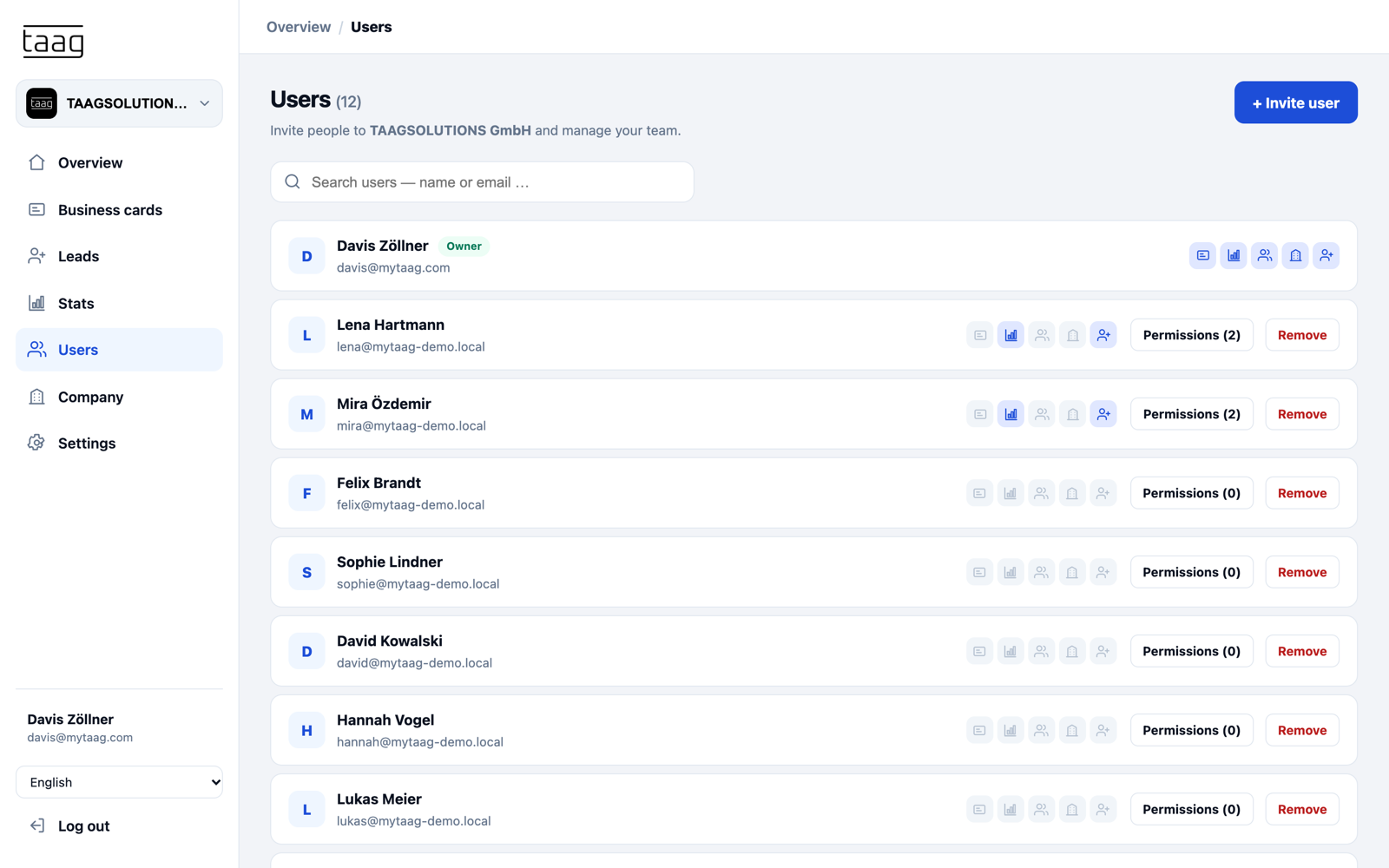
How do I invite employees?
- Web: Users → “+ Invite user”. App: Menu → Users → “+”.
- Enter the email address and choose “Send invitation”.
- The person gets an email. The invitation is valid for 7 days.
- Then assign them a business card – or use “Invite & assign” directly on a business card.
You need the “Users” permission and MyTaag Teams. Open invitations are listed under “Open invitations” with their expiry date; there you can “Resend” them (valid for 7 days again) or “Withdraw” them. If the person is already in the company or there's an open invitation, MyTaag tells you.
Can I invite people who already have a MyTaag account?
Yes. The person gets an invitation and accepts it after logging in. Their account and their own companies stay unchanged; your company additionally appears under “Member of”.
How do I accept an invitation?
- Via the link in the email: new people set a name and password and click “Create account & join”. People with an account log in with the invited address and click “Accept invitation”.
- On the web: on the overview, click “Accept” in the “Invitation to …” banner.
- In the app: Menu (gear icon, red dot) → “Invitations” → “Accept”. The overview also shows the invitation banner.
After accepting, you automatically switch to the new company. An invalid invitation has expired, been withdrawn or already been used – ask for a new one. If you're logged in with a different account, log out and log in with the invited address.
Which permissions are there and how do I grant them?
- Web: Users → “Permissions” next to the person. App: Menu → Users → tap the person → “Permissions”.
- Turn on the areas and save:
- Business cards – create, edit, assign and group all business cards; manage NFC and wallet cards; maintain locked fields.
- Stats – view statistics for all business cards and manage campaigns.
- Users – invite and remove users, and assign permissions.
- Company – edit company data, design, wallet and email templates.
- Leads – manage all leads, the pipeline and the lead form.
New members start without extra permissions. Their own business cards, stats and leads are always accessible. The owner always has all permissions. The icons in the user list show which permissions are active.
How do I remove a user (offboarding)?
- Web: Users → “Remove”. App: Menu → Users → person → “Remove”.
- Without any further choice, everything stays: the business cards remain in the company (without a user), and NFC and wallet cards keep working.
- Optionally: “Delete business card” or “Delete … business cards” (permanent, including stats – the links stop working) and/or “Remove devices” (wallet cards are deleted, NFC cards are unlinked and can be relinked).
- Confirm. Then assign the remaining business cards to someone else.
The person's account stays; they only lose access to your company. The owner and you yourself can't be removed.
How do I switch between several companies?
- Web: click the company name at the top left of the sidebar and choose the company under “Switch company” (memberships are marked “Member”). You land on that company's overview.
- App: Menu → the company at the very top or “Switch” (see App). You land on the profile screen.
How do I create another company or leave one?
- Web: company switcher → “Manage companies”. App: Menu → “Manage companies”.
- “+ New company” → name → “Create & edit”. This requires MyTaag Teams in one of your own companies.
- Under “Member of” you see companies you're a member of. “Leave” removes your access there; your business cards remain in the company.
- You delete your own companies here with “Delete” – with all business cards, leads and content, and it can't be undone. You must keep at least one company.
How do I edit the company's logo, banner, design and details?
Web: Company (“Company” permission) with the tabs “General”, “Business card content”, “Global business card content”, “Design”, “Share”, “Emails” and “Locked fields”; everything saves automatically. App: Menu → Company (“Logo, design, content”).
- General: banner (images or videos), logo, company name and “Additional name (optional)” – helpful to tell apart companies with the same name, e.g. parent and subsidiary.
- Design: colors (accent, background, text, icons), font, “Custom icons” (PNG, JPG or WebP instead of the default icons, up to 4 MB) and wallet design. Applies to all business cards without their own design.
- Logo, banner and design are inherited by all groups and business cards unless they set their own.
How do I set content for all business cards?
- Open Company → Global business card content (or the same in a group). In the app: Menu → Company → “Global business card content”.
- Add fields that should appear on all cards, e.g. company address, website or legal notice.
- Changes here apply to all business cards immediately.
How do I set up the company page?
- Under Company → Business card content, add the company's website, phone, address or social media – this content appears on the company page.
- Under “General” → “Company page”, turn on “Company page is publicly accessible”, adjust the “Public link” (
mytaag.co/company/…) and optionally add a description. - In the “Share” tab, design the company page's QR code and download it as PNG or SVG.
- NFC and wallet cards can link to the company page.
How do I lock fields for employees?
- Open Company → Locked fields (app: Menu → Company → “Locked fields”).
- Tick the field types employees aren't allowed to add, change or delete themselves, and save.
- On the profile, the fields appear as usual. You and admins with the “Business cards” permission keep managing them on every card – they're marked with a lock there.
How do I customize the email templates?
- Open Company → Emails (app: Menu → Company → “Email templates”). You need the “Company” permission.
- Choose the template: Invitation, Invitation (existing account), Forgot password, Confirmation code (2FA), Lead confirmation (opt-in) or Send wallet card.
- Adjust subject, heading, text and button label. Placeholders such as {name} or {company} are replaced when sending.
- “Preview” shows the finished email, “Reset to default” restores the original text.
What does the activity log show?
Web: Settings → Security → “Activity log” → “Show”. App: Menu → Activity. It records sign-ins and sign-outs as well as changes to business cards, groups, users, leads, the company, devices, calendars and billing – for 12 months. The owner sees all of the company's users and can filter by user and area; members only see their own entries.
More about rollout on the page digital business cards for teams.
Billing & plans
What does the free plan include and what does MyTaag Teams offer?
| Free plan | MyTaag Teams | |
|---|---|---|
| Business cards | 1 | as many as licenses booked |
| Sharing via QR, link, NFC, Wallet, signature | Yes | Yes |
| Leads, pipeline, tasks, lead form, scanning | No | Yes |
| Stats and campaigns | No | Yes |
| Invite users, permissions, company design | No | Yes |
| Import, multiple companies | No | Yes |
On the free plan, Leads, Stats, Users and Company stay visible in the menu with a “Teams” badge; opening them shows a page with “Book a demo”.
How do I get MyTaag Teams or more licenses?
- Click “Book a demo” (on the overview, on every Teams page or under Billing) or book a free demo directly.
- In the call we agree on licenses and term; MyTaag Teams is billed by invoice.
- For more licenses in an existing subscription, email hello@mytaag.com.
Buying directly in the app or the web app isn't possible.
Where do I see my subscription, licenses and invoices?
Web: Settings → Billing → “Manage”. App: Menu → Account → Billing. Only the company's owner sees billing. There you'll find:
- Subscription: plan, status (Active, Cancelled, Ended), price per license and month, “Licenses … of … in use”, current period, next billing date and next invoice (net). If it says “Separate agreement”, individual terms apply; MyTaag then doesn't create invoices in billing.
- Billing address: company, contact person, address, country, VAT ID (optional) – appears on every invoice.
- Billing emails: up to 10 addresses, e.g. your accounting team. Without an entry, invoices go to the owner.
- Invoices: with number, date, period, amount and status; on the web “View” and “PDF”, in the app “Open / share PDF” or “View in browser”.
Pay open invoices by bank transfer with the invoice number as the payment reference; the bank details are on the invoice.
How do I cancel my subscription?
- Open billing (see above) and choose “Cancel subscription”.
- Confirm “Cancel subscription?” with “Cancel”.
- The subscription runs until the end of the current period and won't renew; you'll get a confirmation by email.
Once it ends, all business cards and the company page are no longer accessible – including via NFC and wallet cards. Your data stays stored; with a new subscription everything is back online. For a new subscription, email hello@mytaag.com.
Privacy, security & support
How does MyTaag protect my data?
- The servers are in Germany (Hetzner, Nuremberg).
- Protect your account with two-factor authentication by email code and, in the app, additionally with the app lock.
- The activity log shows sign-ins and changes from the last 12 months.
- Profiles at
mytaag.coaren't indexed by search engines. - Lead forms and appointment booking always ask for consent with a link to the privacy policy; optionally with double opt-in.
- If support helps you directly in your account, every access is logged; in the app you see it under Settings → Support access.
Everything else under Privacy & security.
How do I reach MyTaag support?
- Book a free support call at cal.com/mytaag/support.
- Email hello@mytaag.com.
So we can help quickly: tell us your login email, whether you use the web app or the app (iPhone/Android), and for errors send the exact wording of the message or a screenshot.
Frequently asked questions
Where do I log in to MyTaag?
In the browser at app.mytaag.com/login or in the “MyTaag” app for iOS and Android – with email and password or with Apple, Google or Microsoft. Both use the same account.
Is there a MyTaag app?
Yes. Search for “MyTaag” in the App Store or on Google Play. The app does everything important the web app does, plus scanning paper business cards, offline QR codes, push notifications and an app lock with Face ID or fingerprint.
I signed in to the old Taag app with Apple. How do I get in?
Tap “Sign in with Apple” in the new app or on the web – your transferred account opens directly. Your old NFC cards and taag.co links keep working.
I’m not getting a confirmation email. What can I do?
Check your spam folder and tap “Resend link” (at most 3 links in 15 minutes). Check that the address is correct – on the web you can fix it via “Wrong email address?”. The link is valid for 48 hours.
The 2FA code doesn’t arrive or is invalid. What should I do?
Wait a minute and tap “Resend code”, check your spam folder and always use the latest code. A code is valid for 10 minutes and allows 5 attempts; after that you log in again.
Why does it say “Email or password is incorrect”?
Either the password is wrong or there’s no account with this address – the message is the same for security reasons. If you’ve signed in with Apple, Google or Microsoft before, use that button. Otherwise reset your password via “Forgot password?”.
The password reset link doesn’t work.
The link is valid for one hour and can only be used once; requesting a new link invalidates older ones. Request a new one via “Forgot password?” and open the latest.
Microsoft sign-in says an account already exists.
With Microsoft work accounts, MyTaag doesn’t link automatically. Log in once with your email and MyTaag password – within 30 minutes after that, Microsoft is linked.
How do I scan a paper business card?
In the app, tap “Scan lead” on the profile screen, photograph the card inside the frame, check the detected details and tap “Create lead”. The lead appears with the source “Business card scan”. Your company needs MyTaag Teams for this.
The other person has no internet. How can I still share my contact?
In the app, tap the round button in the middle and switch to “Offline”. The QR code contains your contact details directly and saves them without internet.
My NFC card doesn’t work with an iPhone. What can I do?
Hold the card to the top edge of the iPhone with the screen unlocked. Newer iPhones read NFC automatically; on iPhone 7 to X use the NFC icon in Control Center (you may need to add it under Settings → Control Center first). Check under “My Taags” or “NFC & wallet cards” that the card is linked. The QR code always works as an alternative.
I have a new business card – how do I point my NFC card to it?
App: Profile → “My Taags” → card → “Links to …”. Web: Business cards → “NFC & wallet cards” → “Links to” column. The change applies immediately; the card doesn’t need to be rewritten.
How do I add my business card to Apple or Google Wallet?
Quickest in the app: tap “Add to Apple Wallet” or “Add to Google Wallet” below your card on the profile screen. Without the app, open the wallet page from your company’s email on your phone. The wallet card picks up changes automatically.
My wallet card shows old details. What should I do?
Changes usually appear within a minute. Open the wallet card and pull down in its details to refresh, and check that automatic updates are on for the pass. If that doesn’t help, remove it from Wallet and add it again via the app or the wallet page.
Can I use a video as a banner?
Yes. Up to 5 images or videos per banner play as a slideshow. Videos can be up to 30 seconds and 100 MB (MP4, MOV, WebM, M4V) and are cropped to 16:9.
Why can’t I change a field on my business card?
Your company has locked this field type under “Locked fields”, or the field comes from the global content of the company or your group. An admin makes these changes.
Does my own preview count as a view?
No. The preview from the web app or the app counts neither as a view nor as a click or saved contact.
I changed my business card’s link – what happens to printed QR codes?
Printed QR codes and links you’ve sent with the old link stop working. NFC and wallet cards aren’t affected. Create the QR code again or set the old link back.
How many business cards can I create?
One on the free plan; with MyTaag Teams as many as licenses booked. You see the status at the top of the business card list. For more licenses, email hello@mytaag.com.
Why do I see “Teams” next to Leads, Stats, Users or Company?
Your company is on the free plan. These areas are part of MyTaag Teams. With “Book a demo” we’ll show you everything in a short call.
Why don’t I see all of my company’s leads or stats?
Without the “Leads” or “Stats” permission you only see your own leads and business cards. Ask an admin to grant you the permission under Users → Permissions.
A lead from the form doesn’t show up in the list.
If “Email opt-in” is on, the lead only appears once the contact has opened the link in the confirmation email; unconfirmed entries are deleted after 7 days. Also, without the “Leads” permission you only see leads you own.
Do I get a notification when a new lead comes in?
Yes, as a push notification in the app. Allow notifications under Menu → Account → Notifications and keep “New leads” on. The notification goes to the person who owns the business card; for website widget leads, to the company owner.
Can I move deals in the pipeline in the app?
Yes. Tap the ⇄ icon on the deal or long-press it and choose “Move to …”. On the web you drag & drop deals.
The invitation has expired. What now?
Invitations are valid for 7 days. Ask your admin to send it again under Users → “Open invitations” → “Resend” – the new link is valid for 7 days again.
I was invited but already have an account. What do I need to do?
Log in with the invited email address and accept the invitation – via the link in the email, on the web via the banner on the overview, or in the app under Menu → Invitations → “Accept”. The new company then appears in the company switcher.
What happens to the business cards when someone leaves the company?
When you remove the user, business cards and devices stay by default. Assign the business cards to someone else and relink NFC cards if needed. Optionally, you can delete business cards and devices while removing the user.
What happens to my business cards after I cancel?
Everything stays online until the end of the paid period. After that, business cards and the company page are no longer accessible, but the data stays stored and comes back online with a new subscription.
How do I delete my account?
Under Settings → Danger zone → “Delete account” with your current password and the confirmation tick. Note: companies you own are deleted with all their data.
How do I reach support?
Book a free support call or email hello@mytaag.com.